Zsh: glob case-insensitively with the (#i) glob flag and the no_case_glob option
By default, Zsh globs are case-sensitive, so *.jpg matches beach.jpg but not CAT.JPG or dog.Jpg:
$ ls photos/*.jpg
photos/beach.jpg
This is true even on macOS, where the filesystem is case-insensitive by default.
Zsh shares this behaviour with Bash, but provides per-glob and global controls to make your globs case-insensitive and match all the files you probably meant.
Per-glob with (#i)
To make a single glob case-insensitive, use the (#i) glob flag, which makes the rest of the pattern case-insensitive:
$ ls photos/*.(#i)jpg
photos/CAT.JPG photos/beach.jpg photos/dog.Jpg
Glob flags require the extended_glob option, which you can enable in your ~/.zshrc:
setopt extended_glob
Without it, Zsh treats (#i) as part of the pattern, leading to a confusing “no matches found” error.
Flag placement
(#i) applies from where it appears until the end of the pattern, including across directory separators.
So you can put it at the start to make the whole pattern case-insensitive.
For example, to find a README, however it’s capitalized:
$ ls (#i)readme*
README.md ReadMe.rst readme.txt
Or, to match a directory name of unknown case:
$ ls (#i)photos/*.jpg
Photos/CAT.JPG Photos/beach.jpg Photos/dog.Jpg
By default with no_case_glob
Case sensitivity is controlled by a few options, which you can check with set -o:
$ set -o | grep case
nocaseglob off
nocasematch off
casepaths off
set -o lists options that are on by default in their “no” form, so nocaseglob off means that the case_glob option is on, making globs case-sensitive.
(case_match is the equivalent for regular expressions matched with =~.)
If you want all globs to be case-insensitive, you can turn on no_case_glob in your ~/.zshrc:
setopt no_case_glob
Then *.jpg matches CAT.JPG and friends, without any flag.
This applies to every directory in a path that contains a glob, so photos/*.jpg also matches files in Photos/.
If you’d rather that literal directory names stay case-sensitive, also turn on the case_paths option:
setopt case_paths
Fin
May your globs match, whatever the case,
—Adam
https://adamj.eu/tech/2026/10/30/zsh-case-insensitive-globbing/
#rss #feeds #linksharing #qwibbit
#i
#rss
#feeds
#linksharing
#qwibbit
Adam Johnson (Unofficial)2d
Zsh: uncover hidden files in globs with (D)
By default, Zsh globs skip hidden files and directories, meaning those with names starting with a dot.
For example, in a project directory, * misses all the configuration files and directories:
$ ls -d *
README.rst generate_pigeon.py
To include them, add the (D) glob qualifier, which stands for “dot files”:
$ ls -d *(D)
.env .git .github .pre-commit-config.yaml .venv README.rst generate_pigeon.py
(ls -d lists directories themselves, rather than their contents.)
(D) never matches the special . and .. entries, so you don’t need to worry about them popping up in results.
Recursive globs
(D) matters most for recursive globs with **/, because without it, Zsh also skips hidden directories.
For example, to find all YAML files in a repository:
$ ls **/*.yml
zsh: no matches found: **/*.yml
That missed the GitHub configuration files within .github.
Add (D) to find them:
$ ls **/*.yml(D)
.github/dependabot.yml .github/workflows/main.yml
Sometimes skipping hidden directories is what you want, though.
For example, **/*.py matches only generate_pigeon.py, usefully skipping the virtual environment in .venv, while **/*.py(D) includes all its files.
Always include hidden files with the glob_dots option
If you want globs to always include hidden files, enable the glob_dots option in your ~/.zshrc:
setopt glob_dots
Then you can use (^D) to exclude hidden files when needed, since ^ negates a qualifier:
$ ls -d *
.env .git .github .pre-commit-config.yaml .venv README.rst generate_pigeon.py
$ ls -d *(^D)
README.rst generate_pigeon.py
List only hidden files
If you only want hidden files, you can start a pattern with a dot:
$ ls -d .*
.env .git .github .pre-commit-config.yaml .venv
Again, Zsh never matches . and .. here.
To find hidden files recursively, use **/.*, but you will need to add (D) so that Zsh also searches within hidden directories:
$ ls -d **/.*(D)
.env .git .github .pre-commit-config.yaml .venv .venv/.gitignore .venv/.lock
Fin
May what was hidden be found,
—Adam
https://adamj.eu/tech/2026/10/29/zsh-d-glob-qualifier/
#hiddenfiles #zsh #github #add #finmay
#rss #feeds #linksharing #qwibbit
#hiddenfiles
#zsh
#github
#add
#finmay
Adam Johnson (Unofficial)3d
Zsh: parse command-line options with zparseopts
Sometimes you want your shell scripts to take options, like --verbose or --help, along with any positional arguments.
Handling options is fiddly to do by hand, with the traditional portable approach being a large block of code using a while loop, a case statement, and some shifts.
Bash has the getopts builtin, but it only handles single-letter options, like -v.
Zsh also has getopts, for compatibility, with the same limitation.
Zsh has a better tool: zparseopts.
It handles both short and long options, in one line of declarations.
A simple example
Here’s a script called caw, which prints a crow’s call.
It takes one on/off option, -l or --loud, to capitalize the message:
#!/usr/bin/env zsh
# Caw like a crow.
zparseopts -D -E -F -- \
{l,-loud}=flag_loud \
|| exit 1
if (( $#flag_loud )); then
message="CAW!"
else
message="Caw!"
fi
print $message
Without the option, it caws normally:
$ ./caw
Caw!
With the option, it caws loudly:
$ ./caw --loud
CAW!
And unknown options are rejected:
$ ./caw --lodu
./caw:zparseopts:4: bad option: --lodu
Let’s break down how it works.
Specifications
After the --, each argument to zparseopts specifies an option, in the form name=array.
When zparseopts finds an option, it appends it to the named array.
For example, l=flag_loud means that if -l is passed, it ends up in the array flag_loud.
Long option names start with an extra -, so -loud=flag_loud handles --loud.
The script uses brace expansion to declare both short and long forms at once: {l,-loud}=flag_loud expands to l=flag_loud -loud=flag_loud.
After parsing caw --loud, the array contains the option:
$ typeset -p flag_loud
typeset -a flag_loud=( --loud )
If the option isn’t passed, the array is empty.
So the script checks for the option with (( $#flag_loud )), which tests whether the array is non-empty.
The flags
The above script also passes three flags to zparseopts before the specifications, which I’d recommend for most uses:
-D deletes parsed options from the positional parameters, so $@ contains only the remaining arguments.
caw doesn’t take any other arguments, but most scripts do, such as filenames to process.
Without -D, those scripts would see options mixed in with their arguments.
-E allows options to appear anywhere, rather than only before the first non-option argument.
This allows commands like script file.txt --loud to work.
-F makes zparseopts fail on unknown options, printing an error message.
Without it, typos like --lodu would be silently ignored.
On failure, zparseopts returns a non-zero exit status, which || exit 1 uses to stop the script.
A bigger example
Here’s caw extended with two more options, -h / --help to print usage, and -n / --number to caw multiple times:
#!/usr/bin/env zsh
# Caw like a crow.
usage() {
# Keep in sync with zparseopts specifications below.
print "usage: caw [-h] [-l] [-n NUMBER]"
}
zparseopts -D -E -F -- \
{h,-help}=flag_help \
{l,-loud}=flag_loud \
{n,-number}:=arg_number \
|| { usage >&2; exit 1 }
if (( $#flag_help )); then
usage
exit
fi
if (( $#flag_loud )); then
message="CAW!"
else
message="Caw!"
fi
repeat ${arg_number[-1]:-1} print $message
For example:
$ ./caw --help
usage: caw [-h] [-l] [-n NUMBER]
$ ./caw --loud -n 3
CAW!
CAW!
CAW!
--help is an on/off option, like --loud.
The new parts are the usage message and --number, which takes an argument.
Usage message
The script defines a usage function, which it calls for --help, and when zparseopts fails.
On failure, || { usage >&2; exit 1 } prints the usage message to standard error after the error message, then exits:
$ ./caw --lodu
./caw:zparseopts:9: bad option: --lodu
usage: caw [-h] [-l] [-n NUMBER]
Unfortunately, zparseopts can’t generate a usage message for you, so you need to keep it in sync with the specifications by hand.
: for an option with an argument
A : after the name means the option takes an argument, which is also appended to the array.
For example, after parsing --number 3, the arg_number array contains the option and its argument:
$ typeset -p arg_number
typeset -a arg_number=( --number 3 )
Short options also accept their argument attached, like -n3.
If the argument is missing, -F makes zparseopts fail:
$ ./caw -n
./caw:zparseopts:9: missing argument for option: -n
usage: caw [-h] [-l] [-n NUMBER]
The script reads the argument with ${arg_number[-1]:-1}.
This takes the last array element, which is the argument for the last --number passed, or 1 if the option wasn’t passed at all.
Using the last element means repeated options override earlier ones, like -n 2 -n 4 giving 4.
The script then uses Zsh’s repeat loop to print the message that many times.
+ for a repeatable option
By default, the array only stores an option once, even if it’s repeated.
A + after the name makes the option accumulate instead.
For example, {l,-loud}+=flag_loud would let -l -l mean “extra loud”, with $#flag_loud as the level.
= is not supported
Many programs, like Git, accept long options with an = to separate the value, like --number=3.
Unfortunately, zparseopts doesn’t treat = specially, so the = ends up in the argument:
$ typeset -p arg_number
typeset -a arg_number=( --number '=3' )
So this usage of caw fails:
$ ./caw --number=3
./caw:26: bad math expression: operand expected at `=3'
If you want to support this form, you’ll need to strip a leading = with the ${name#pattern} parameter expansion, for each argument you read:
repeat ${${arg_number[-1]#=}:-1} print $message
…that’s probably not worth it for most scripts.
Fin
May your scripts be short, your commands commendable, and your parsing code pass,
—Adam
https://adamj.eu/tech/2026/10/28/zsh-zparseopts/
#rss #feeds #linksharing #qwibbit
#flag_loud
#flag_help
#rss
#feeds
#linksharing
Adam Johnson (Unofficial)15d
Django: check version support with norwegianblue
Django projects end up slotting into a bunch of software release cycles: Django itself, Python, database servers, cache servers, and more.
It can be hard for us developers to keep track of all of them, with their different support policies and end-of-life dates, and running an unsupported version means missing out on important security or bug fixes.
norwegianblue is a handy command-line tool for checking software support dates.
It fetches data from endoflife.date, a community-maintained database of release cycles for hundreds of products, and displays it as a colour-coded table.
It’s from Hugo van Kemenade, the Python 3.14 and 3.15 release manager, and named after the deceased parrot from Monty Python’s infamous Dead Parrot sketch.
Let’s look at checking the release cycles for Django, Python, PostgreSQL, and other relevant tools with it.
Install it
norwegianblue provides two commands: norwegianblue and the shorter alias eol.
I recommend the alias, since it’s easier to type and remember, and will use it throughout this post.
To make both commands available everywhere, install norwegianblue globally.
If you use uv, do so with uv tool install:
$ uv tool install norwegianblue
Otherwise, install it with your preferred tool, such as a global pip install or pipx.
Check Django
Run the command without any arguments to see the list of product names it knows about:
$ eol
adonisjs
akeneo-pim
...
Somewhere in that long list are django and python, among others you probably care about.
Run the command a product name to see its release cycles, for example:
$ eol django
Here’s the output of checking Django’s release cycles today, trimmed to the most recent versions:
Each row is a feature release, with LTS (long-term support) releases marked.
The columns show:
release: when the feature release came out.
latest and latest release: the latest patch version and its release date.
support: the end of mainstream support, after which the release only receives security fixes.
eol: the end of extended support, after which the release receives no fixes at all.
supportedPythonVersions: the range of Python versions that the release supports.
The dates are colour-coded: red for dates in the past, yellow for dates within the next six months, and green for dates further out.
The cycle names take the colour of their eol dates, so you can quickly spot unsupported versions.
So, from the above, we can see that Django 6.1, 6.0, and 5.2 are currently supported, with 6.0 recently moving into security-fixes-only mode.
Django 5.0 and 5.1 are end-of-life, so if you’re still using them, it’s time to upgrade!
(My tool django-upgrade can help).
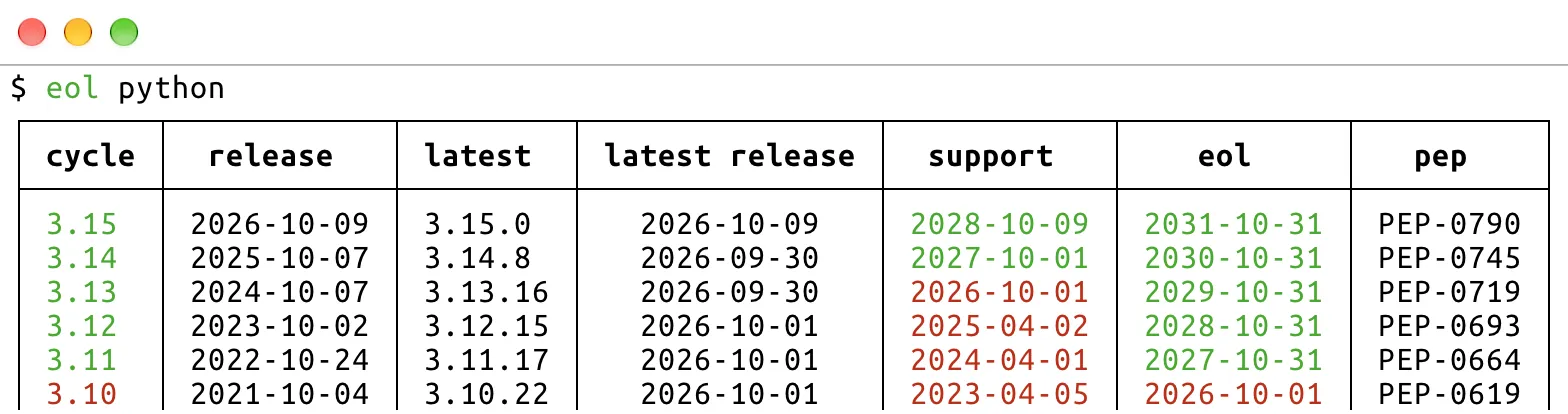
Check Python
You also need a supported Python version, which you can check with:
Here, support is the end of bugfix releases, and eol is the end of security releases.
The pep column names the PEP containing each version’s release schedule, for example PEP-790 for Python 3.15.
Python 3.10 reached its end of life recently, so it’s time to upgrade any projects still using it!
Check PostgreSQL
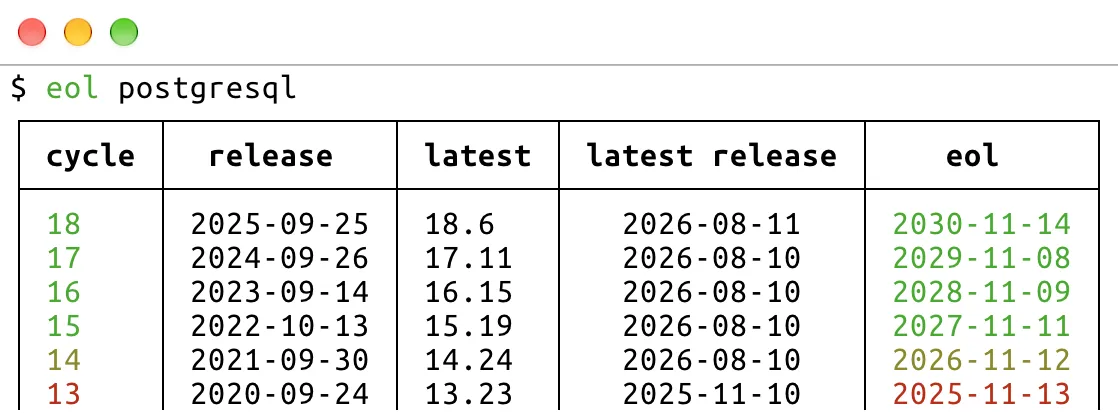
The most popular database for Django projects is PostgreSQL, which you can check with the postgresql product name:
PostgreSQL supports each major version for five years, with no separate end of mainstream support.
PostgreSQL 14 reaches its end of life next month, so it shows in yellow, as a warning to upgrade soon.
Django also drops support for old PostgreSQL versions, generally around their end-of-life dates.
The Django database docs list the minimum version that each release supports.
Check other products
endoflife.date covers hundreds of products, so you can likely check most of your stack.
Django-relevant products include:
Other databases: mariadb, mysql, sqlite, oracle-database, and mssqlserver.
Hosted databases: amazon-rds-postgresql, amazon-rds-mysql, amazon-rds-mariadb, amazon-aurora-postgresql, azure-database-for-postgresql, and heroku-postgres.
Caches and other services: redis, valkey, memcached, and elasticsearch.
Operating systems and web servers: ubuntu, debian, and nginx.
Frontend tooling: nodejs.
Django-based projects: wagtail.
norwegianblue caches its data for the rest of the day, so repeated runs are fast.
It can also output Markdown, reStructuredText, JSON, and other formats, as listed in --help, which may be useful for pasting into documentation or scripting checks.
Fin
Thanks to Hugo for making norwegianblue, and to the endoflife.date contributors for maintaining its data.
That web framework is not dead, nor is it just resting!
—Adam
https://adamj.eu/tech/2026/10/16/django-norwegianblue/
#rss #feeds #linksharing #qwibbit
#rss
#feeds
#linksharing
#qwibbit
Welcome to Adam Johnson (Unofficial) spacestr profile!
About Me
Unofficial automated RSS/Atom links to Adam Johnson's work on frequent, specific Django and Zsh tutorials from an identified software author. Original work is credited at the source; follow the source links. Zaps support the independent feed operator, not the author.